
Blocks and Fines
This section explains the blocks that can appear on a borrower’s account and how to handle them.
Current Blocks Window
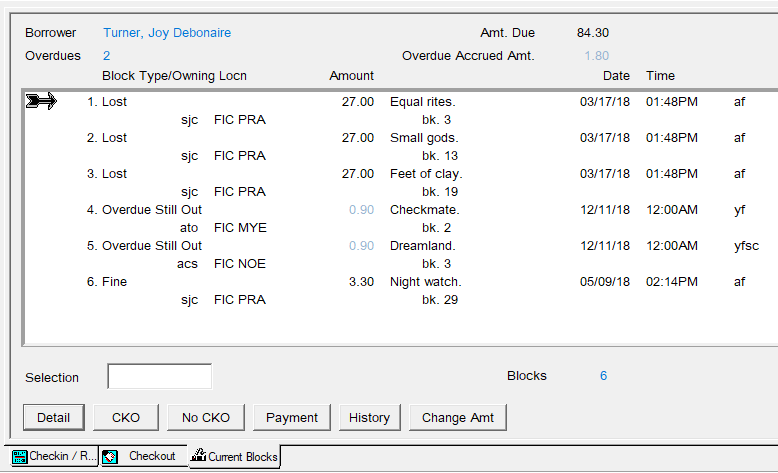
Sometimes when you search for a borrower or scan their card Horizon will divert you to the Current Blocks Window. This is where Horizon lets you know about issues that you might need to address before checking out items to a borrower.
Often the blocks window appears because a borrower owes fines for items returned late, or because the borrower has overdue items still checked out. Other blocks can also exist, such as a message to remind staff and the borrower that an item is being held.
If the blocks window appears then take note of each block listed and attempt to resolve any issues before moving on.
When you have finished with the blocks window, click on the CKO button to progress to the borrower’s checkout window, or click on No CKO to clear the borrower.
Viewing Blocks
If a borrower has any blocks then the blocks window will automatically open whenever you search for them or scan their card.
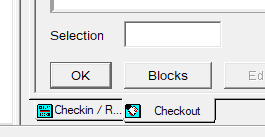
To reach to the current blocks window from the checkout, click on the Blocks button:
Resolving Blocks
Some blocks are deleted automatically by Horizon once resolved, such as when payment is taken for a fine. Other blocks, such as messages for borrowers, need to be manually deleted once resolved.
Some blocks don’t need resolving straight away for the borrower to continue borrowing, such as blocks for overdue items.
We'll look at those types of block later.
First we'll look at blocks that need to be resolved before a borrower is allowed to borrow any more items.
Maximum Exceeded Blocks Window
Sometimes borrowers are blocked from borrowing more items until an issue has been resolved. If you try to progress to the checkout screen by clicking on CKO then Horizon will warn you with a pop-up message:
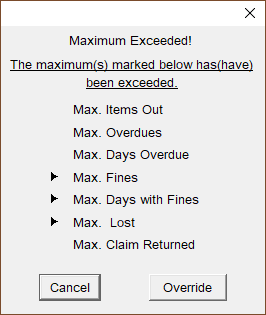
If no blocks can be resolved at this time then click on Cancel to close the message and leave the borrower’s record. The borrower will not be able to borrow any new items.
If any blocks can be resolved then:
-
-
- click on Override to progress to the checkout window
- click on Blocks to return to the current blocks window
-
The borrower must resolve the blocks before they are able to borrow any more items. In thisthe above example the borrower will need to pay the outstanding fine(s)fines and either pay for or return the lost item(s).items.
How to take payments is covered later in this chapter.section.
Overdue Items
Overdue items are resolved by checking them in or renewing them.
When an overdue item has been returned or renewed itsThe ‘Overdue Still Out’ block will automatically disappear.
Fines for Late Returns
Overdue YA and adult materials are charged $0.15 per day to a maximum of $5.00 per item.
Overdue juvenile materials are charged $0.05 per day to a maximum of $0.50 per item.
Horizon automatically calculates and applies fines.
No libraries charge for the days that they are closed.
It is possible to exceed the maximum fine per item. For example, suppose an overdue item has accrued the maximum $5.00 fine. If you renew the item then that $5.00 is still owed but Horizon will begin charging fines if the item becomes overdue again.
Borrowers have 6 months to pay a fine before they are blocked from borrowing.
Determining the Amount to be Paid
If a borrower has an amount to pay for late or lost items then it will show in the top-left of the current blocks window.
In fact there are two totals: one for Amount Due and one for Overdue Accrued Amount:

Amt. Due is the total for lost items and items returned late. This amount can be paid now.
Overdue Accrued Amt.Amt. is the total for overdue items that have not yet been returned. This amount cannot be paid yet, because the amount will increase daily until the items have been returned or renewed.
In the above example $84.30 can be paid straight away, but the $1.80 is an increasing amount and cannot be paid until the borrower returns or renews the overdue items.
Taking Payment
 Printable Quick Guide: Fines and Lost Items
 Video Guide: Taking Payment for a Fine
A borrower can pay any amount up to the total amount due. They can choose to pay for specific blocks.
At the current blocks screen:
-
-
- optional: if the borrower is paying only for specific blocks first select them
selectclick on Payment
The Fine Payment window will appear:
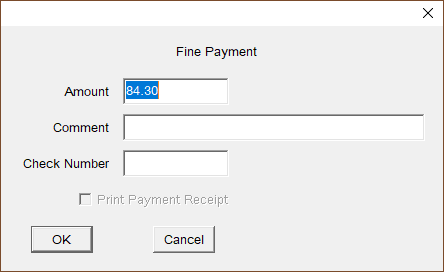
Thethe total amount duedue:
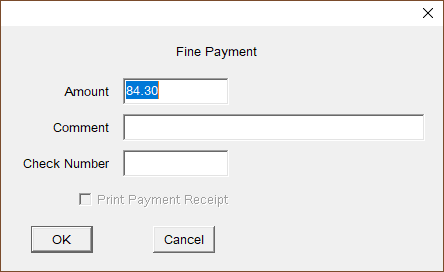
If the borrower is paying a lessersmaller amount right now then you can change the amount manually. Just type it into the Amount field. Horizon will calculate the remainder to be paid and adjust any monetary blocks accordingly.
The borrower cannot pay more than the total amount due. So they cannot ‘pay in advance’ for accruing overdue fees.
If the borrower wants to pay more than is due and wishes forwants the surplus to be a donation, then:
- take payment in Horizon for the total amount due
- record the surplus as a donation in your site’s daily revenue, outside of Horizon
Horizon does not generate receipts for payments. However if you take payment for a lost item then you must issue a paper receipt.
Waivers
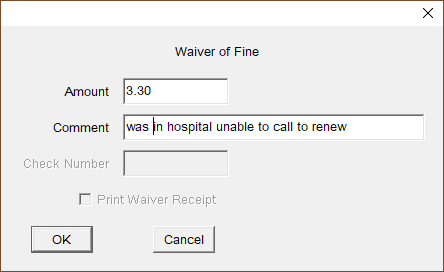
Fines and Fees can be waivered in special circumstances, such as if a borrower was in hospital and unable to renew items thatwhen subsequently became overdue.due.
To waive a monetary block:
- highlight the block(s) that the waiver will be applied to
- select from top menu Blocks > Waiver
- adjust the amount if need be
- add a comment as appropriate
Selectclick on OK
Lost and Damaged Items
Printable Quick Guide: Fines and Lost Items
Video Guide: Dealing with Lost Items
Items overdue for more than 42 days are automatically set to a status of ‘Lost’. Those items no longer appear in the borrower’s list of checked out items, and instead appear as fee blocks in the current blocks window.
To resolve a lost item the borrower must return it, replace it or pay the replacement fee.
Borrower Returns a Lost Item
If the borrower returns a lost item then check it in. This message will appear:
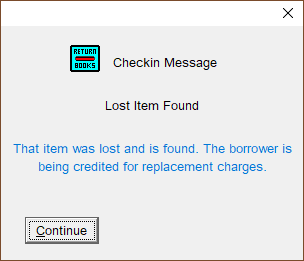
The lost item block, along with its fee, will be automatically removed from the borrower’s account. Horizon will automatically apply any fine for late return.
Borrower Says That They Have Lost or Damaged an Item
If a borrower has lost an item,item or damaged it beyond use,use then you will need to manually declare that item to lost.
At the borrower’s checkout screen
select-
- click on All Items Out
- select the lost item
- select from top menu CKO > Lost
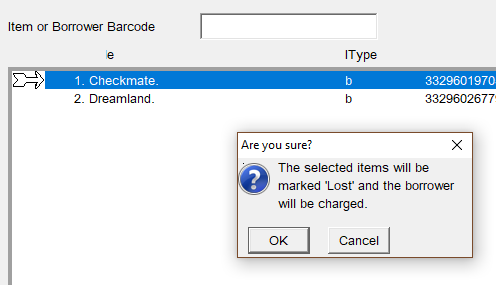
Another window will appear telling you the replacement cost of the item.
Changing the Amount for a Lost Item
If you believe that the cost is unreasonably high then you can change the amount. For example some older paperbacks show a default price of $27.00 but the actual replacement cost may be only $7.95.
To change the amount, go to the borrower’s blocks screen:
-
-
- select the lost item
selectclick on Change Amt- the Change Fee Amount window will appear
- enter the new amount and provide a reason
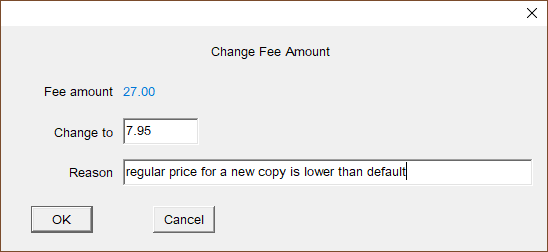
When payment is taken for a lost item a receipt must be issued.
Refunds for Lost Items
Sometimes a borrower loses an item, pays for it and then later finds it.
To receive a refund the borrower must provide the item in good condition and the original payment receipt.
We do not take money from petty cash to refund the borrower. Complete a Refund for Materials Previously Reported as Lost form, which can be found in the staff portal. Attach the original receipt and forward it to your divisional office for your Divisional Manager to sign. Headquarters will issue a refund cheque directly to the borrower.
Check in the item to restore it to the collection.
Claimed Returned
Sometimes a borrower may believe that an item has been returned but not checked in. If this happens immediately check the shelves.
If the item is found then check it in using Exempt Fines Mode.
If the item is not found and the borrower insists that the item has been returned then you will need to change the status of that item to Claim Returned.
In the checkout window:
- search for the borrower or scan their card
- select All Items Out
- select the item(s) which the borrower claims returned
- select from menu CKO > Claim Returned
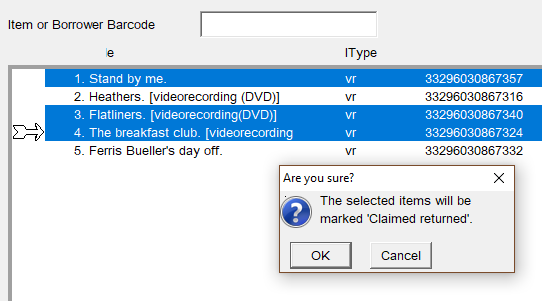
Horizon will change the status of the item to claim returned and add a claimed returned block to the borrower’s account. The block will remain until the item is found.
There is no fee associated with the block and no fines are charged if the item is later checked in.
Manually Adding a Block
You can manually place a note or fee block on a borrower’s record. A note block will need to be manually deleted when resolved, but a fee block will automatically delete when resolved.
To add a note block:
- go to the borrower’s current blocks or checkout screen
- select from menu Blocks > Add Note
- choose an appropriate block from the list
- add a comment and include your initials
- leave Action as ‘none’
These are the types of notes that we use:
|
Block Code |
Description |
Who can see? |
|
acr |
Address Correction Required |
staff and borrower |
|
eme |
Email Address Error |
staff and borrower |
|
ill |
InterLibrary Loan not picked up |
staff and borrower |
|
llc |
Left Library Card at library |
staff and borrower |
|
msg |
Message to borrower |
staff and borrower |
|
nid |
Need ID to complete registration |
staff only |
|
note |
comment |
staff only |
|
nsn |
Never Send Notices |
staff only |
|
pcr |
Phone Correction Requested |
staff and borrower |
|
smsg |
Staff Message |
staff only |
Example:
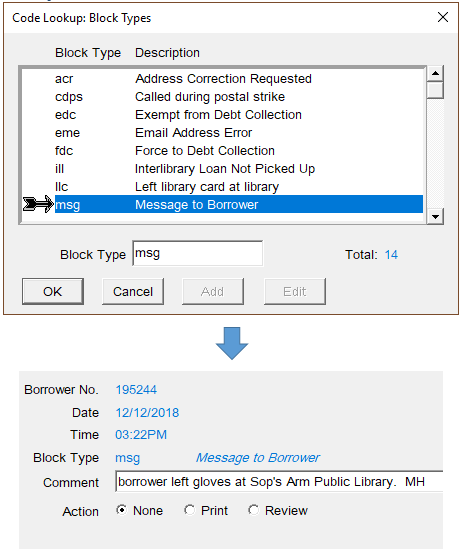
To add a fee block:
- go to the borrower’s current blocks or checkout screen
- select from menu Blocks > Add Fee
- choose an appropriate block from the list
- enter the amount in the Fee field
- add a comment and include your initials
These are the types of fees that we add:
|
Block Code |
Description |
Who can see? |
|
damage |
Damaged |
staff and borrower |
|
fee |
Fees |
staff and borrower |
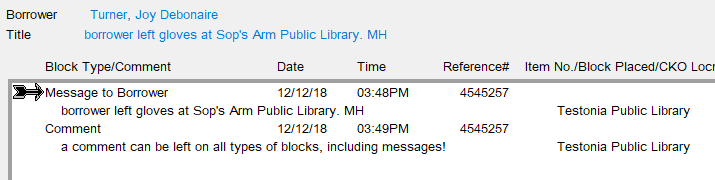
To add a comment to an existing block:
- highlight the block
- select Detail
- Horizon will display the current block detail window
- select Comment
- you can enter up to 80 characters
- leave Action as ‘none’
- select Close
Manually Deleting a Block
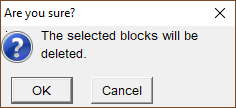
At the borrower’s current blocks window:
- highlight the block(s) to delete
- select from menu Block > Delete
- Horizon will ask for confirmation
- select Close
Blocks with monetary amounts cannot be manually deleted. They must be resolved by paying or waiving the amount.
Blocks cannot be manually deleted for items that are lost, claimed returned or being held. The item must be checked in or checked out.
Viewing a Borrower’s History Blocks
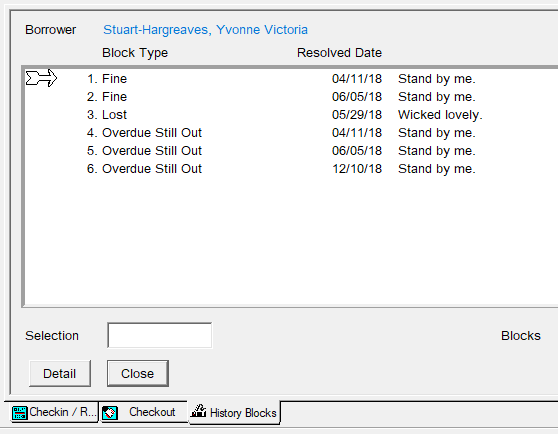
The history blocks window shows a list of the borrower’s resolved blocks and the dates that they were resolved.
At the borrower’s current blocks window:
- select History
- highlight a block and select Detail to display more details about it
Viewing a Borrower’s Payment History
You can view all of a borrower’s payment transactions starting at a particular date.
At the borrower’s checkout window:
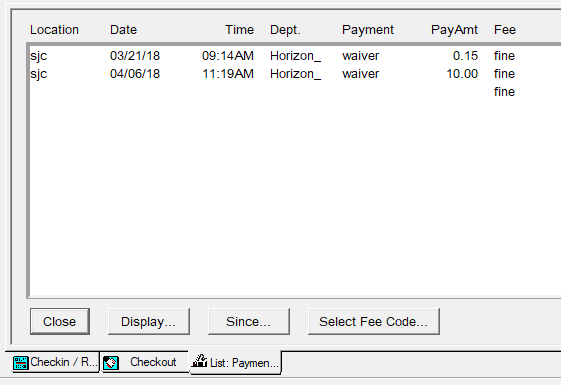
From here you can:
- select Display to choose what information is displayed onscreen
- select Since to choose a new start date
- select Select Fee Code to view only one type of fee
Appendix: Types of Blocks
Horizon comes with a set of predefined blocks, some of which we will never use, such as Force to Debt Collection or Exempt from Debt Collection. These predefined blocks cannot be deleted so we must ignore them.
These are the blocks that we do use:
Address Correction Required
Manually placed by staff if they are aware that a borrower’s address has changed, so that the next time the borrower checks out an item you can update their registration. This block must be manually deleted.
Adjustment Credit
Automatically placed if staff decreases the amount that a borrower owes on an existing fine or fee. It is appended to a particular block and can only be viewed when you select the detail for that block. It tracks the date and the amount adjusted. It is automatically deleted when the fine or fee is resolved.
Automatic Bill Sent
Automatically placed when a borrower exceeds the max fine, or an item is so long overdue it has been set to lost. It is attached to each fine or lost block that has an amount included on the billing notice. It is automatically deleted when the fine or fee is resolved
Adjustment Debit
Automatically placed if staff increases the amount that a borrower owes on an existing fine or fee. It is appended to a particular block and can only be viewed when you select the detail for that block. It tracks the date and the amount adjusted. It is automatically deleted when the fine or fee is resolved.
Balancing Entry
Automatically placed as a notation appended to the original fine block. It is automatically deleted when the fine or fee is resolved.
Billing Notice
Automatically placed when Day End is run, triggering a billing notice when fines or fees have exceeded the maximum. Unlike Automatic Bill Sent this is a separate current block and must be deleted manually when the blocks are resolved.
Claim Returned
Manually placed by staff when a borrower claims that an overdue item has been returned. It should only be used after the shelves have been checked. It is automatically deleted if the item is checked in. No late fees are charged to the borrower.
Credit
If a borrower returns an item that they have previously paid for then this block is placed when an amount is credited to a borrower account. It will appear as a negative amount.
Damaged
Manually placed by staff when a borrower returns an item in a damaged state. This removes the item from circulation and does not trigger any requests. The borrower is not charged a fee. It is automatically deleted when the block is resolved. If wish to charge the borrower for a damaged item then it should be declared lost instead.
Fees
Manually placed by staff to apply miscellaneous fees. It is automatically deleted when the block is resolved.
Final Overdue Notice
After other overdue notices have been sent Horizon automatically appends this notation to the Overdue Still Out block. This can only be viewed when you select the detail for that particular block. It is automatically deleted when the block is resolved.
Fine
Automatically placed when an overdue item is checked in. The Overdue Still Out block is replaced by a Fine block. It is automatically deleted when the fine is resolved.
Hold Cancelled By Borrower
Automatically placed so that there is a record of why and when a hold was cancelled by a borrower. A borrower can cancel a hold online. This block must be manually deleted.
Hold Cancelled By Library
Automatically placed so that there is a record of why and when a hold was cancelled by staff. Often placed following a verbal request by a borrower, but shows as cancelled by library because it was done through Horizon. This block must be manually deleted.
Hold Cancelled and Reinserted in Queue
Automatically placed when a staff member checks out an item on hold to another borrower. Horizon allows the option of reinserting the original request back into the top of the hold queue. This block must be manually deleted.
Hold Expired
If an item remains on hold for more than 7 calendar days and is not picked up by the requestor then Horizon automatically cancels the hold. This block must be manually deleted.
Hold Notification Mail
Automatically placed when a hold notification for e-mail or letter has been generated. It is automatically deleted when the item is checked out. Changes to Hold Expired if the item is not checked out.
Hold Notification Phone
Automatically placed when a hold notification by phone has been generated. It is automatically deleted when the item is checked out. Changes to Hold Expired if the item is not checked out.
Lost
Automatically placed if an item is overdue more than 42 days. It can also be manually placed by staff when a borrower claims to have lost the item. It applies a fee to the borrower’s record. It is automatically deleted when the block is resolved.
Message to Borrower
Manually placed if staff wish to relay information to a borrower. For example if the borrower left their library card you would use this block. This block can be viewed by both borrowers and staff. This block must be manually deleted.
Comment or Staff Message
Similar to Message to Borrower but these are not readable by the borrower. This block must be manually deleted.
Never Send Notices
Manually placed when there is a borrower who should never be sent a notice. This block over rides the system-generated notifications. This may be helpful for staff who do not need to receive notifications about holds and overdue items. Some locations may find it useful for Books by Mail borrowers if they don’t need to know that their items are overdue or on hold. Should never be used for regular borrowers who pay fines. This block must be manually deleted.
Overdue Still Out
Automatically placed when an item has not been checked in by its due date. It is automatically deleted when the block is resolved.
Fine Payment
Automatically placed and appended to a fine block as a notation, and can only be viewed when you select the detail for that block. When the borrower pays the total fee the original block automatically moves to the History Block list.
Request Deleted
Automatically placed by Horizon when a bib record for a requested item is deleted from the system which had a copy specific request. There are no other details given other than request deleted. This block must be manually deleted.
Request Expired
Automatically placed when the system defined expiration date of 18 months or 550 days has been exceeded for the unfilled request. This block must be manually deleted.
Refund of Payment
Automatically placed and appended to a credit block when you refund a payment to a borrower It keeps track of the date and the amount of the transaction. It is automatically deleted when resolved.
Requested Item Lost
Automatically placed when an item that is a copy specific request is aged from overdue to lost. Does not apply to title or bib level requests (any copy). This block must be manually deleted.
Waiver of Fines
Automatically placed when you waive a fine. Horizon deducts the amount waived from the total amount owed and then attaches a Waiver of Fine block to the original block and moves the whole block to the History Blocks list.