Borrower Records

This section explains how to register a new borrower and how to edit an existing borrower’s record.  We begin with the policies that guide and govern the process.


Printer-icon.png  Printable Quick Guide: Borrower Records
 

Registration Policies

Getting a Card

A borrower must show proof of identification to register for library services.  A government issued ID is preferred, such as driver’s license or MCP card.  We do not record details of the ID.

Each borrower is given a free plastic library card and should sign on the back.  There is a $2 replacement fee for lost or damaged cards, although cards which become worn or damaged through normal wear and tear can be replaced free of charge.

A library card provides access to the services of all public libraries in the province, including checkout of items, use of eLibrary services, and use of public computers.

A borrower can hold only one active card.


Registration is Paperless

Registration is recorded directly into Horizon.  However if the circulation desk is busy, or if Horizon is down, then a patron can complete a Borrower Registration Form.  The form must be shredded once details have been entered into Horizon.


If Horizon is down then do not provide a library card at this time.  When Horizon is working again, check that the borrower does not already have an account and then register them in Horizon.


Registering Different Borrower Types

Children Under 13

A parent or guardian must apply for the child’s membership.  If they do not have an ID present for the child then they can show an ID for themselves.

Use the child’s name.  The parent’s name should be recorded in the ‘Parent/Guardian’ field of the borrower record.  The parent’s email address should be used.

Children are issued a child library card which the parent must sign.


Young Adults (13-17 inclusive)

A young adult must apply for their own membership and show their own ID.  If they don’t have ID then the ID of a parent or guardian who is present can be used instead.

Young adults are issued a regular library card.  A young adult takes full responsibility for borrowed materials and must sign his or her card.


Talking Book Borrowers

The Talking Book audiobook collection is produced by the CNIB and housed at A.C. Hunter Library in St. John’s.  To register as a talking book borrower a patron must have a CNIB number or a registration card signed by a doctor or registered nurse.  A talking book borrower could be homebound, walk-in or non-resident.


Visitors from Out of Province

A visitor from out of province who wants to borrow items can be registered using a Temporary Card made of cardstock.  Cards are available from Technical Services.

Visitors from out of province include tourists and people visiting their family.

A person who resides within the province is not a visitor and should be registered as a regular borrower.  This includes a student at MUN or Grenfell.

Record the visitor’s temporary address first and the permanent address second.


Registering a New Borrower

Before registering a borrower check that they are not already registered.

Delinquent borrowers sometimes try to re-register rather than pay fines.  Borrowers who have moved within the province sometimes don’t realize that their card is valid at all provincial libraries.


Searching for an Existing Record

video-play-icon-11385.gif  Video Guide: Searching for a Borrower


To check if a borrower is already registered, perform a borrower search.  Go to the Checkout tab and press [F4] or select from top menu Borrower > Find Borrower.

A pop-up window will appear: Borrower-Search-Window.PNG


Normally you would search by name, although other indexes can be used.

Type the last name first.  For example: fletcher-norman-search.PNG

You don’t need to use capital letters.  Use spaces to separate the first and last names.


The results display alphabetically, with an arrow pointing to the name closest in spelling to your search:

Borrower-Search-Results.PNG


For an unusual name you might need to only type the last name and first letter of the first name: monsoon-e-search.PNG


For more common names it might help to type in the middle initial too: hickey-james-t-search.PNG


Advanced search techniques are useful if you think that a borrower record might already exist under a misspelled name.

* (asterisk) replaces zero or more letters.  For example:

cor* will list borrowers whose last name begins with ‘cor’

? (question mark) replaces a single letter:  For example:

perr?n will return results for perrin, perron and perryn


If the borrower already has a record then select it and click OK.  Press [F6] or select from top menu Borrower > Edit Borrower to open the record.  Confirm details and issue a new library card if necessary.  See the section Editing a Borrower.


Creating a New Borrower Record

Printer-icon.png  Printable Quick Guide: Borrower Registration

video-play-icon-11385.gif  Video Guide: Registering a Borrower


If the borrower you are searching for is not found then you will need to register them.

First close both pop-up search windows:

      • click on Cancel or press [Escape] to close the borrower list window
      • click on Cancel or press [Escape] to close the borrower search window


You should now be back at the Checkout window.Checkou

Open a new borrower record:

        press [F5] or select from top menu Borrower > New Borrower enter borrower details in the fields as prompted


        Fields with an asterisk (*) are required.  The record cannot be saved unless they are completed correctly.


              click on Page Down/Page Up to move through the registration click on Save then Close when complete


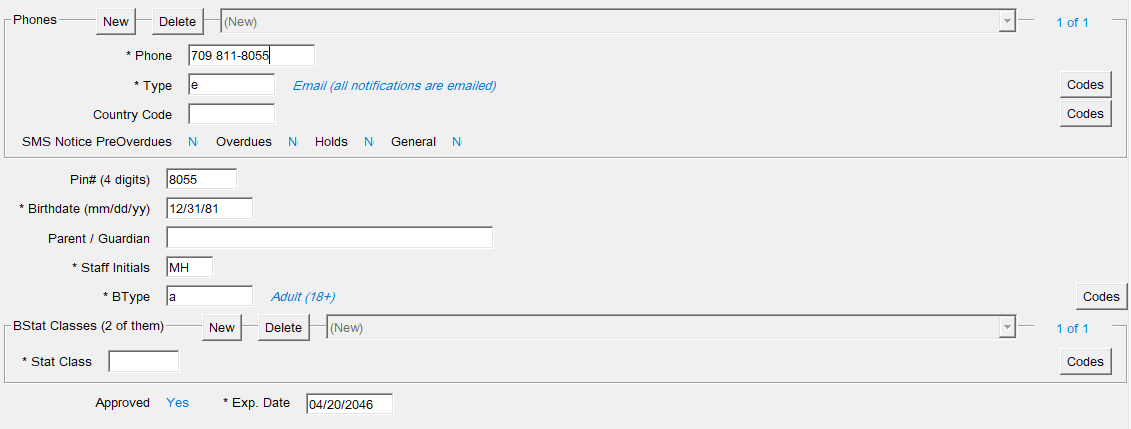
              Registration Example

              Click on the images to view them full size in a new tab.  When finished, close the tab to return to this guide.
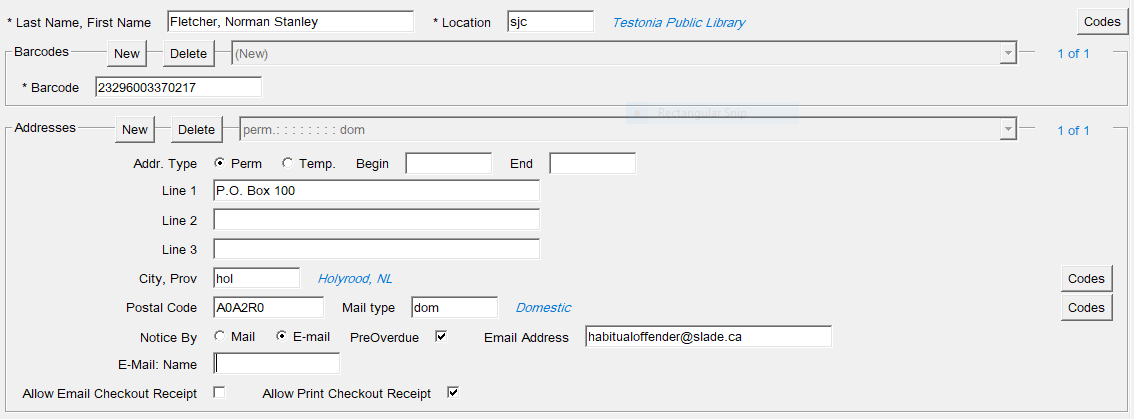
              Sample-Borrower-Registration-Page-1.PNG

              Sample-Borrower-Registration-Page-2.PNG


              Completing the Record

              Completing most parts of the borrower record is straightforward but there are a few areas that behave differently.


              Fields That Use Codes

              Some fields use short codes.  Type a code into the field and the matching description will appear in blue text on the right.


              If you don’t know which code to use then click on the Codes button to the right of the field to see a full list.


              The following examples illustrate.


              Location

              Location-Field.PNG

              This field uses a 3-letter code to represent the borrower’s home library.

              Type in a 3-letter code and Horizon will write the full name of the library next to it, in blue text.

              When creating a new record Horizon will autocomplete the code for your local library.  If you need to change the location but don’t know the code for the library then you can click on the Codes button to view a list of valid codes.

              Location-Codes-Popup.PNG


              City, Prov

              City,-Prov-Field.PNG

              This field uses codes to represent communities within the province.

                    start typing the name of the town or city and pay attention to the location that appears in blue text stop when the required location is shown in blue don’t use spaces


                    If you can’t find a town or city then click on the Codes button to view the full list, and select from there.  If a community is not in the list then choose the nearest instead.


                    Phones-Blink.PNG

                    Some areas of the record allow you to enter more than one set of details.  These areas are called Blinks.

                    Enter the first set of details by simply typing into the fields.  To add another set of details, click on the New button.  To remove a set of details choose them from the drop-down list then click on the Delete button.


                    Borrower Type

                    Btype.PNG

                    Enter the borrower type into the BType field.  The most common borrower types are shown below, and you can click on the Codes button to view the full list.


                    Borrower

                    BType

                    adult

                    a

                    young adult

                    y

                    child under 13

                    c

                    preschool

                    ps

                    visitor from outside province

                    va

                    child visitor

                    vc


                    Borrower Stats

                    Two borrower stats need to be entered into the BStat blink.  The first is age/service related and the second is geographical.  The Section-by-Section Guide explains how to determine them.  To record them:
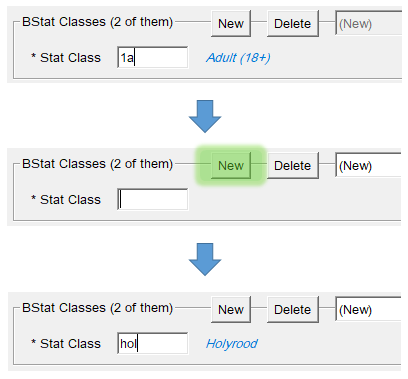
                     

                          enter the first stat              
                            click on New              
                              enter the second stat Bstats-[Edited].PNG

                              If you fail to enter both stats then the record will not save.  If you make a mistake in this section then the easiest way to rectify it is to click on the Delete button three or four times and then re-enter the stats.


                              Section-by-Section Guide

                              Last Name, First Name

                                capitalize the first letter of each name last name first insert a comma between last & first name always include a middle name if it exists hyphenated names should be entered as one unit, for example Stuart-Hargreaves, Yvonne

                                Location

                                  automatically filled by Horizon if you need to change the library the borrower is registered at you can just change the code

                                  Barcode blink

                                    scan barcode from library card when a borrower loses their card, delete the old barcode and replace with the new one

                                    Address

                                    blink

                                    Addr Type

                                      for residents use Perm (permanent) for temporary visitors use Temp (temporary)

                                      Lines

                                        use mailing address

                                        City, Prov

                                          only for communities in NL keep typing while looking at the screen stop when the town or city name appears do not enter any spaces if the name doesn’t appear, use line 2 or 3 of the address and leave this field blank for a location outside NL use line 2 or 3 of the address and leave this field blank

                                          Postal code

                                            in caps format: "Letter # Letter  Space  # Letter #" example: A0A 2R0

                                            Mail Type

                                              one option, dom, automatically filled

                                              Notice By

                                                select email or mail according to the borrower’s preference for email they need to check it regularly and ensure that their junk mail filter does not block mail from nlpl.ca

                                                PreOverdue

                                                  check this box if the borrower is receiving notices by email

                                                  Email address

                                                    complete if receiving notices by email use lower case borrower will be notified by email about holds, and overdue items

                                                    Email name

                                                      leave blank

                                                      Allow Email Checkout Receipt

                                                        leave blank

                                                        Allow Print Checkout Receipt

                                                          leave checked

                                                          Phone blink

                                                          Phone

                                                            can insert multiple numbers by clicking on New first number should be the one to use if the borrower wants to be called about holds (instead of notices by email) type 000-0000 if they have no phone

                                                            Type

                                                              e – for notifications p – for notifications by phone n – if they have no phone nor email

                                                              Country Code

                                                                leave blank

                                                                PIN # (4 digits)

                                                                  use the last 4 digits of the phone number inform the borrower that it can be used with their card number to access online services

                                                                  Birth date

                                                                    format: mm/dd/yy

                                                                    Parent / Guardian

                                                                      Last Name, First Name of parent / guardian accepts responsibility for items borrowed notices will be sent to this person

                                                                      Staff Initials

                                                                        required field lets us check with the staff member who created the record in case there are questions about the registration enter your initials if you edit an existing record

                                                                        BType

                                                                          borrower type – see the table

                                                                          BStat

                                                                          classes

                                                                          blink

                                                                          1st BStat

                                                                            age/service related matches the Btype code but with a 1 in front

                                                                            2nd BStat


                                                                            Press ‘New’ before entering the 2nd stat.

                                                                              geographical based on the borrower’s place of residence, not the library’s location for a community in NL keep typing while looking at the screen stop when the town or city name appears do not enter any spaces if the name doesn’t appear use dk for a location in another province use z and use the postal designation for the province
                                                                                  example: znb for New Brunswick for outside Canada use znc (Not Canada)


                                                                                  Registering a Temporary Borrower

                                                                                  video-play-icon-11385.gif  Video Guide: Registering a Temporary Borrower


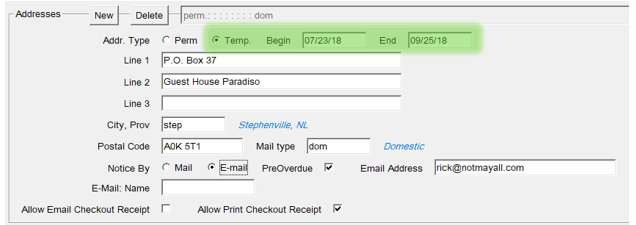
                                                                                  Visitors from out-of-province are registered the same way as regular borrowers, with an additional step.

                                                                                  Record their temporary provincial address and include a Begin and End date.

                                                                                  You can record their out-of-province address in Line 3.
                                                                                  Temporary-Address-[Edited].PNG


                                                                                  Editing a Borrower Record

                                                                                  video-play-icon-11385.gif  Video Guide: Editing Borrower Details


                                                                                  Borrower records can be edited, to reflect changes in a borrower’s personal details or simply to correct a mistake.

                                                                                  At the checkout window scan their card or press [F4] and perform a search for the borrower.

                                                                                  Borrower-in-Checkout.PNG


                                                                                  Press [F6] or select from top menu Borrower > Edit Borrower.  The borrower’s record appears.

                                                                                  Borrower-Record-for-Edit.PNG


                                                                                  Edit the record as needed then click on Save and Close.


                                                                                  Home Service

                                                                                  When editing an existing record you will see a Home Services section.  This is often empty and can be ignored.


                                                                                  Home-Service-Blink.PNG


                                                                                  Replacing a Library Card

                                                                                  video-play-icon-11385.gif  Video Guide: Replacing a Borrower’s Card
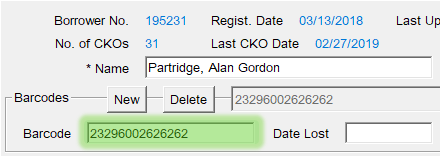
                                                                                   

                                                                                        press [F4] and search for the borrower press [F6] to enter their record delete the old barcode scan the new card into the Barcode field Save and Close Replace-Borrower-Card-[Edited].PNG

                                                                                        When changing the barcode, don't click on New or enter the Date Lost.


                                                                                        Duplicating a Borrower Record

                                                                                        video-play-icon-11385.gif  Video Guide: Duplicating a Borrower


                                                                                        If you need to register a number of people who share a lot of details, such as a family living at the same address, then you can duplicate one of their borrower records.  Many fields will be automatically filled in, saving time and effort.

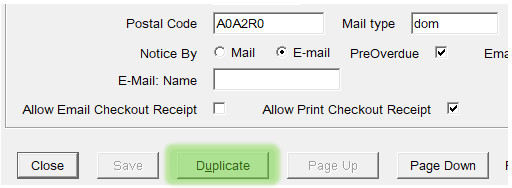
                                                                                        To duplicate a borrower’s record click on the Duplicate button at the bottom of the first page of the record screen:
                                                                                        Duplicate-Button-[Edited].PNG


                                                                                        A new, partially completed borrower record will appear.  Complete the record, carefully reviewing each pre-completed field.


                                                                                        Self-Registered Borrowers

                                                                                        video-play-icon-11385.gif  Video Guide: Fixing a Self-Registered Borrower


                                                                                        Self-registered borrowers have registered online and received a library card through the mail.  Before they can borrow physical items we need to verify their identity and contact details.

                                                                                        When a self-registered borrower tries to borrow physical items for the first time and you scan their card, Horizon will prompt you to update their record:

                                                                                        Self-Registered-Prompt.PNG


                                                                                        To complete verification:

                                                                                              press [F6] to enter the borrower record change location from ‘elib’ to your site confirm the borrower’s name, address, email, phone number and date of birth enter your initials in the staff initials field change the borrower type from SR to the correct code
                                                                                                  for example ‘a’ for an adult fix the borrower stats:
                                                                                                    delete the ‘1sr’ stat add a 1st stat for the borrower type
                                                                                                      for example ‘1a’ for an adult add a 2nd stat for the borrower’s address location
                                                                                                        for example ‘avo’ for Avondale Save the record click on Clear on the Checkout screen re-scan the borrower's library card 


                                                                                                        Borrowers Registered Before Automation


                                                                                                        Some borrowers who registered before Horizon was introduced will need their records updated, similar to self-registered borrowers.

                                                                                                        These borrowers may have zero, one or many borrower stats currently recorded.  The easiest way to correct and complete their records is to delete all existing borrower stats and then re-enter them.


                                                                                                        Annual Details Check

                                                                                                        video-play-icon-11385.gif  Video Guide: Annual Details Check


                                                                                                        Once per year, when you scan a borrower’s card or [F4] search for them, Horizon will prompt you to check that the borrower’s recorded address is correct:

                                                                                                        Annual-Address-Check.PNG


                                                                                                        Click on Continue and the borrower’s record will appear in a pop-up window:

                                                                                                        Edit-Borrower-Pop-up.PNG


                                                                                                        Carefully review the record and update where necessary.  Save when complete.


                                                                                                        Horizon does not automatically update the borrower type or borrower stats as a borrower ages.  So if a borrower has aged from, say, a young adult to an adult then you will need to update their btype and bstat fields.


                                                                                                        Deleting a Borrower

                                                                                                        video-play-icon-11385.gif  Video Guide: Deleting a Borrower


                                                                                                        Occasionally we discover that a borrower has been recorded twice into the system, or has died.  If the surplus account does not have outstanding items or fines then it can be deleted:

                                                                                                              search for the borrower press [F6] to enter their record select from top menu Borrower > Delete Borrower


                                                                                                              Do not delete a borrower record for any other reason.


                                                                                                              If the account has outstanding items or fines then it cannot be deleted.  Contact your regional office for assistance.


                                                                                                              Guest Computer Users


                                                                                                              A person who only wants to use a public computer can do so if they show an ID and write their name, address and date of visit in the Guest Computer Users Log.


                                                                                                              Staff should log onto MyPC for the patron using a Guest Computer User Card.  Do not hand the card to the patron.


                                                                                                              Please refer to the MyPC Staff User Guide for further guidance, including on how to create a guest computer user card.  The guide can be found in the staff portal, under Staff Tools > Training Guides.