Item Search
This section explains how to search for items, such as by title, author or subject, and how to restrict a search to a chosen type of material or location.
 Printable Quick Guide: Item Search
Search Menu
To search for an item press [F2]. A pop-up window will appear:
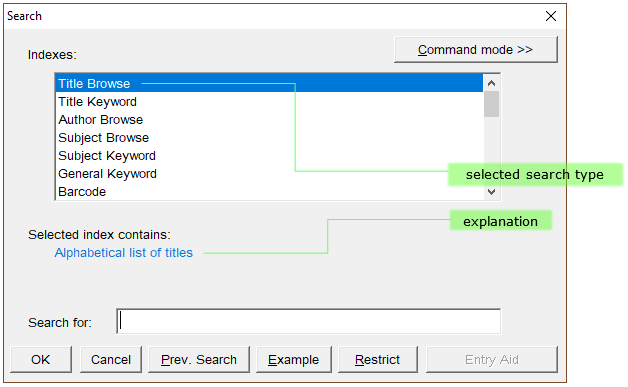
The list of indexes allows you to choose different types of search. Title Browse is selected by default. Horizon will remember the last search index used.
Capital letters are not needed when searching, and articles such as ‘a’, ‘an’ and ‘the’ can be left off the front of a search.
For example a title browse for “wonder” will also find titles called “The Wonder”, and “fistful of dollars” will find the title “A Fistful of Dollars”.
Similar to borrower search, item search is not forgiving of spelling mistakes.
If you subject browse for “knirring” instead of “knitting” the results will be unhelpful.
However, if the spelling is correct then you don’t need to type in a full search phrase to get good results.
For example a title browse for “harry potter and the ph” will find entries for “Harry Potter and the Philosopher’s Stone”.
Types of Search
Browse Searches
The main type of search that we use at the circulation desk is a browse search, either by title, author or subject. We’ll use examples of those 3 types to illustrate how search works, and also mention the other types of search available.
Title Browse
This provides a list of titles in alphabetical order.
 Video Guide: Searching by Title
Example: a simple search: Going Postal by Terry Pratchett
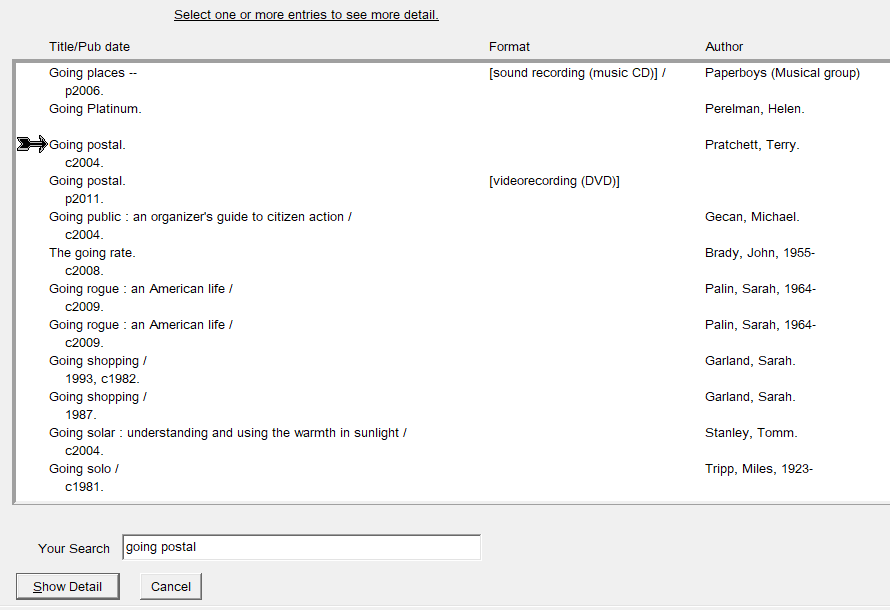
Searching for “going postal” returns these results:
 |
|
|
Click on the image to view it full size in a new tab. Close the tab to return to this guide. |
The arrow points to the closest match. Notice that the Format is blank, which tells you that it’s a book. The entry below it has the same name but is a video recording.
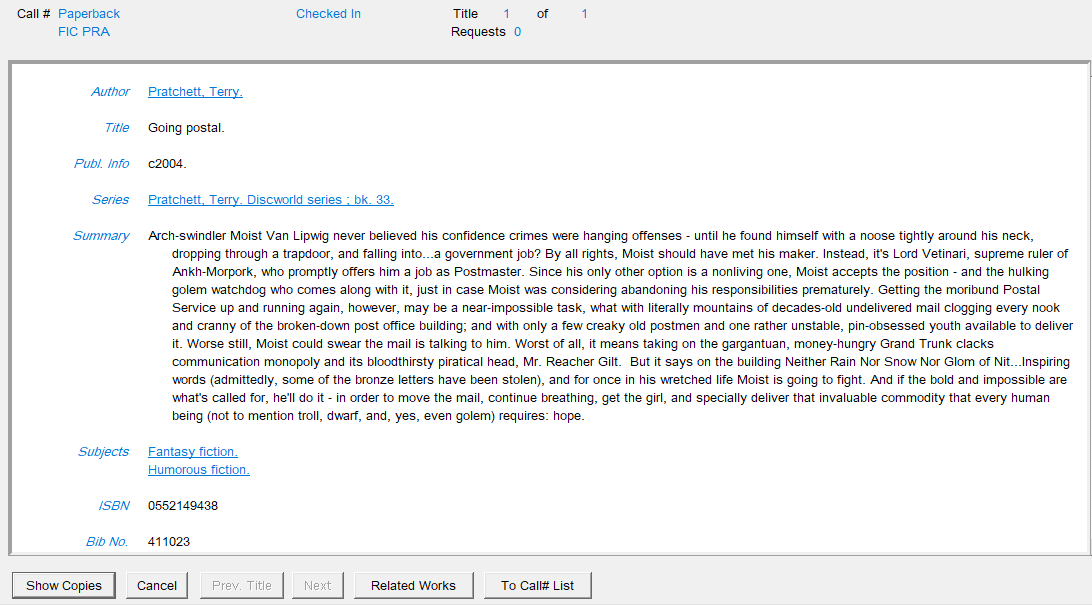
Click on Show Detail to view the Bibliographical Detail window:
 |
|
|
Click on the image to view it full size in a new tab. Close the tab to return to this guide. |
Most of the time we reach this window we simply want to click on Show Copies to see which locations have this item. However, sometimes the links and information can be useful.
The blue underlined links for Author, Series and Subjects can be double-clicked, and will take us to more titles by the same author, in the same series, or on the same subject.
The Publication Info and Summary can provide clarification if a borrower is looking for a book but isn’t too sure about its title, or is looking for a specific edition.
Clicking on Show Copies brings up another window that shows where copies are held:

Here you can see that there are 4 copies in the collection, and that all are checked in.
If there is a copy at your location then it will appear at the top of the list. If there isn’t a copy at your location it can be requested by Inter-library Loan.
If a copy is checked out then you can see who has it by clicking on the Detail Status button. This provides information about the current borrower and prior circulation.
Searching for an item causes a few windows to open. When you are finished with a search the easiest way to close each one is to press the [Escape] key.
Example: when multiple editions exist: Harry Potter and the Philosopher’s Stone by J K Rowling
Searching for “harry potter and the ph” returns these results:

Again, the arrow points to the closest match but we can see that there are five entries for this title: 2 books, 2 video recordings and an online electronic version.
The online version cannot be checked out using Horizon, but if no physical copies are currently available it could be useful to let borrowers know that it exists. Borrowers can check it out using the eLibrary system.
If the borrower is looking for a video recording then check the format carefully to see if it’s the tape, DVD or Blu-Ray version. Sometimes this is obvious from the Format column, other times you need to click on Show Detail and view the Bibliographical Detail window to verify.
Sometimes, such as here, multiple entries exist for a book. Often they can be differentiated by the publication date, and if that’s important to the borrower then you can select the edition that they prefer. However in this case there are 2 entries for the book, and both have a 1997 publication date. So highlight both entries by selecting them…
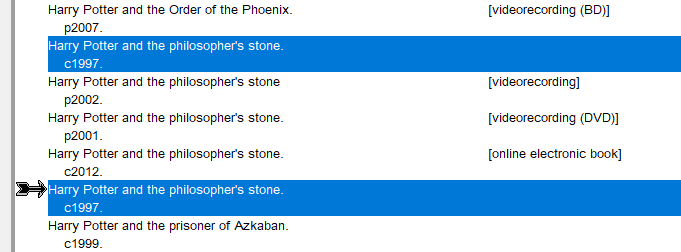
…then click on Show Details to move onto the Bibliographical Detail window:
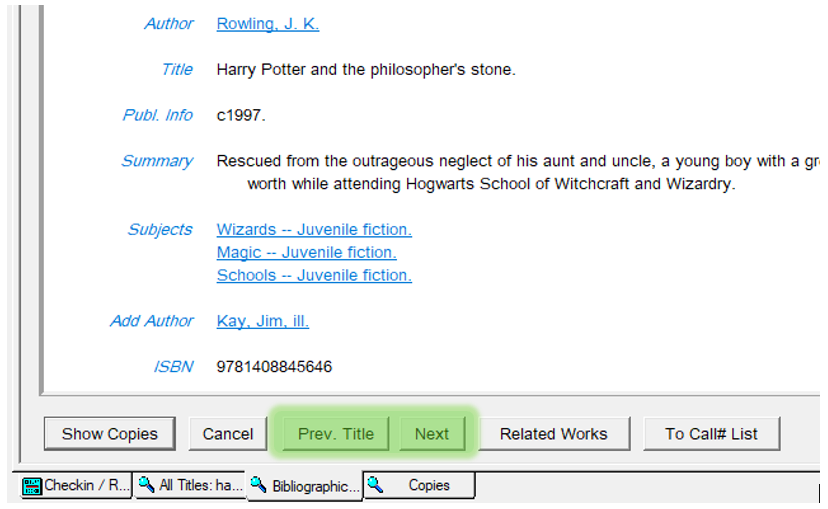
In this window you can move between the details of each selected entry by clicking on the Prev. Title and Next buttons at the bottom.
To see where the copies for an entry are located click on Show Copies. In the Copies window the Prev. Title and Next buttons can be used to see where copies of each version are held.
Example: when different titles have the same name: Wonder
Searching for ‘wonder’ returns these results:
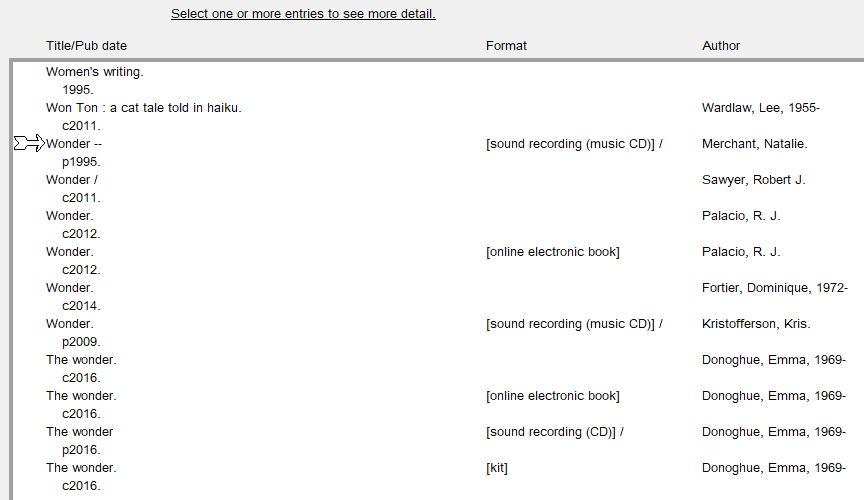
You can see that there are several different titles named “Wonder” and that they are not listed alphabetically by author.
Also, scrolling down a little reveals that there are even more results for “Wonder” after the results for Emma Donoghue’s “The Wonder”:
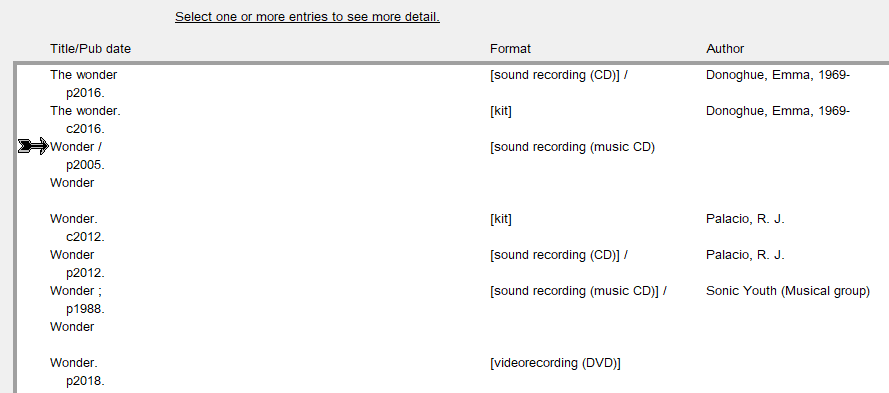
So you may need to scroll up or down the list to find a title with a common name by a particular author, or to find all versions of a particular title.
Author Browse
This provides a list of authors in alphabetical order.
Video Guide: Searching by Author
Example: search for Karen Robards
Searching for “robards karen” returns these results:
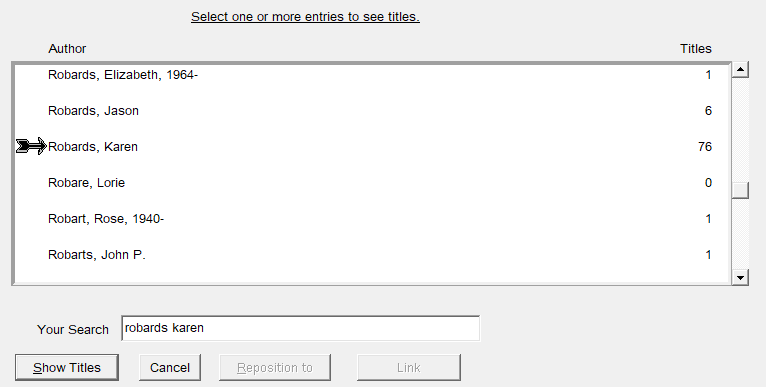
Here you can see that we currently have 76 of Karen’s titles in the collection. Clicking on Show Titles lists them:
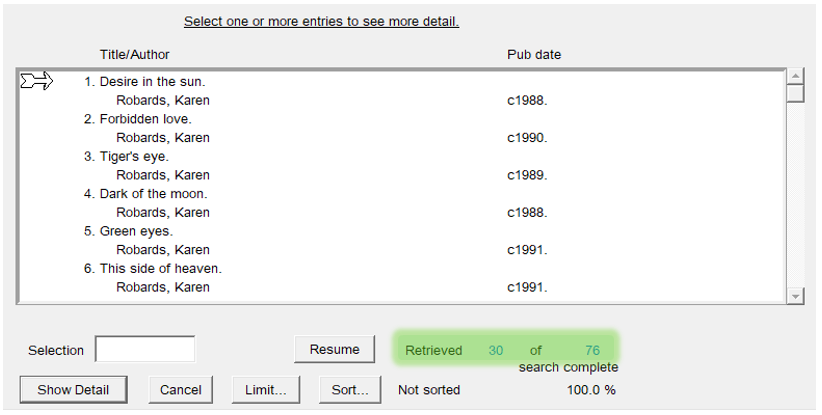
You can also see that only 30 of the 76 entries were retrieved. Click on the Resume button to fetch the rest. You may need to do this a number of times.
You can click on the Sort button to sort the list. A pop-up box appears:
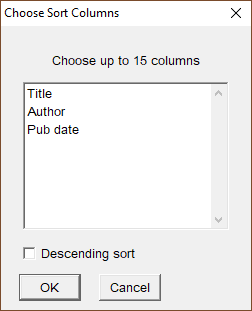
There are 3 ways to sort: by title, author or publication date. To sort by publication date:
- select Pub date and it will move to the top
- select Descending sort to make the newest titles appear at the top of the list
- click on OK
To find where copies of a particular title are located you can click on Show Detail and then Show Copies, the same as when searching by title.
Subject Browse
This provides a list of subject headings in alphabetical order.
Video Guide: Searching by Subject
The subject heading must begin with the word or words you type, so sometimes it is worth performing a Subject Keyword search too, because that search will return all subjects that contain the keyword.
For example, a subject browse for “knitting” will return all subjects that begin with the word “knitting”, such as “Knitting Patterns” and “Knitting: Newfoundland and Labrador”, but it won’t include subjects such as “Peg Knitting” or “Spool Knitting”. However a subject keyword search for “knitting” will include those subjects.
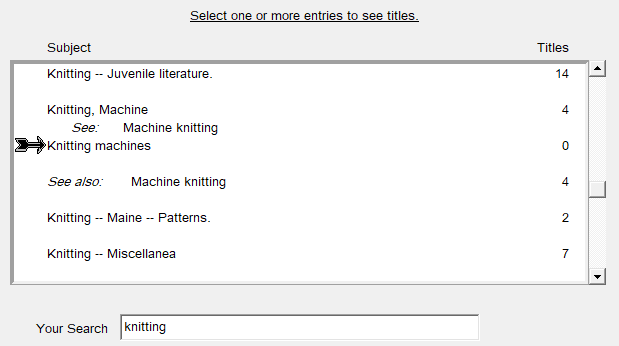
In general the quality of search results depends on the quality of the input. So if a borrower wants titles about “Spool Knitting” then a subject browse for “spool knitting” is more likely to return relevant results than a browse for just “knitting”.
Series Browse
This provides a list of series in alphabetical order.
You need to know the first word or words of the series name. If you are not sure of the precise name of a series then you could use a Series Keyword search instead. If that doesn’t help then you could search for a title that you know is in the series and then double-click on the series name in the Bibliographical Detail window (see the section Subject Browse).
Other Browse Searches
You can also browse for audiobooks, dvds, videos, journals and music.
Keyword Searches
These search for a word or words located anywhere within a title, subject or series.
For example a Title Keyword search for “pigs” will find all titles that have the word “pigs” in them:
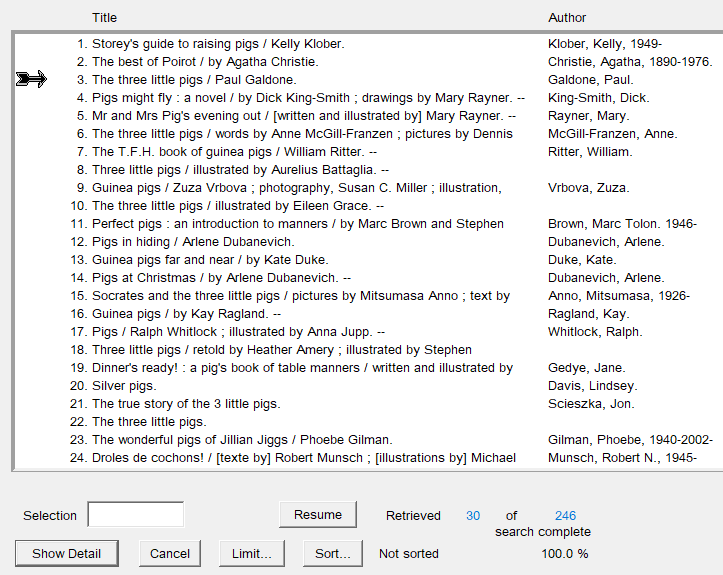
As you can see from the results above there are benefits and drawbacks to using keyword searches.
If we have a title containing the keyword, it will be in the results list somewhere. However the results list is often lengthy and diverse, and cannot be sorted by material type or collection. That makes it hard to trawl through to find titles that the borrower may want to know more about.
So it is usually better to adjust the search. If the borrower wants books about pigs, then use a Subject Keyword search instead. If the borrower wants juvenile books that have the word “pigs” in the title, then restrict the search to juvenile materials only (see the section Restricting a Search).
What most types of keyword search do is obvious by their names (such as Title Keyword), but there are a couple types of search that are worth a little explanation.
General Keyword Search
This will search by Author, Title, Subject, Series and Contents – all at once.
That makes it a very powerful yet very blunt instrument. For common words it will often return too many diverse results, but it is worth using if you are having trouble finding something on a subject.
Authors & Performers Keyword Search
This will find items by an author or with a listed performer.
For example, it can find all the books, music and videos that Madonna has either written or performed in.
Enhanced Searching by Keyword
Using Truncated Keywords
Keywords can be truncated using an * asterisk.
For example, a Title Keyword search for “econ*” will find all titles that contain a word beginning with “Econ”, such as “Economics”, “Economy” and “Economical”.
Using Multiple Keywords
A keyword search can be narrowed by using two or more words, each separated by a space. It will find titles that contain all the keywords.
The words AND and OR can also be used to improve your search.
Here are some examples of how multiple keywords can be used:
|
Using…
|
…and searching for… |
…will find |
|
title keyword |
harry potter
|
items with both “harry” and “potter” in the title |
|
subject keyword |
paint* canada
|
books about painting or painters in Canada |
|
|
animal* AND (sound OR communication)
|
books about animals sounds |
|
|
(atomic OR nuclear) AND (energy OR power)
|
books about nuclear power |
|
general keyword |
newfoundland AND (ghost OR spirit OR supernatural) |
ghost stories from Newfoundland |
Number Searches
There are several ways to search by number, such as by Barcode, ISBN or Dewey Call Number.
Searching by barcode can be a quick way to reach useful information.
For example if you have an item in your hand, scanning it in will bring up its Bibliographical Detail window. From there you can look up more titles by the same author, titles in the same series and other titles on the same subject.
Restricting a search
Searches can be restricted by types of material and location.
Video Guide: Restricting a Search
- press [F2] to begin a search
- the Search Window will open
- click on the Restrict button
- the Restrict Title Window will open
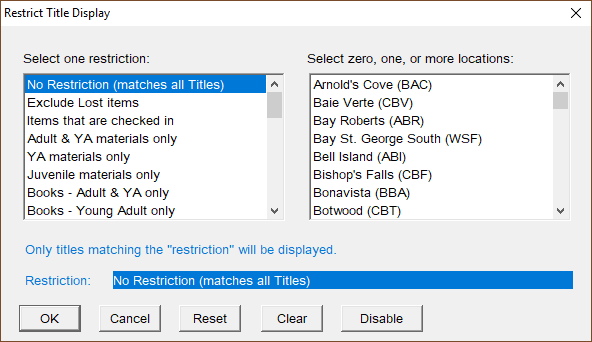
In the left pane you can select one type of material, such as large print only. In the right pane you can select zero, one or more locations.
Click on OK to return to the search window. A blue bar will remind you that searches are now restricted:
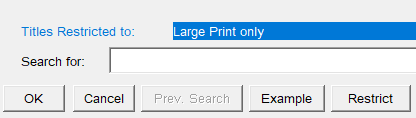
From here you can continue with your search.
The restriction will remain in place for future searches until you clear it. To clear a restriction:
- press [F2] to open the Search Window
- click on Restrict
- the Restrict Title Window will open
- click on Clear

If you want to temporarily disable a restriction then click on the Disable button instead of Clear. Click Enable to bring it back.
Limiting a search
After you have performed a search you can refine it to make the results more relevant.
For example, to find books about dinosaurs published since 2010:
- perform a Subject Browse search for “dinosaurs”
- select the entry “Dinosaurs”
- click on Show Titles to bring up the full list of titles
- click on Limit
The Search Limit box will appear:
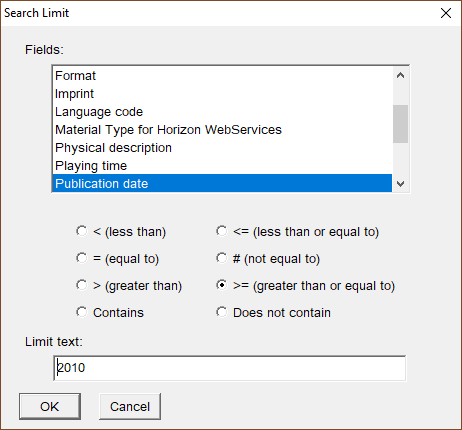
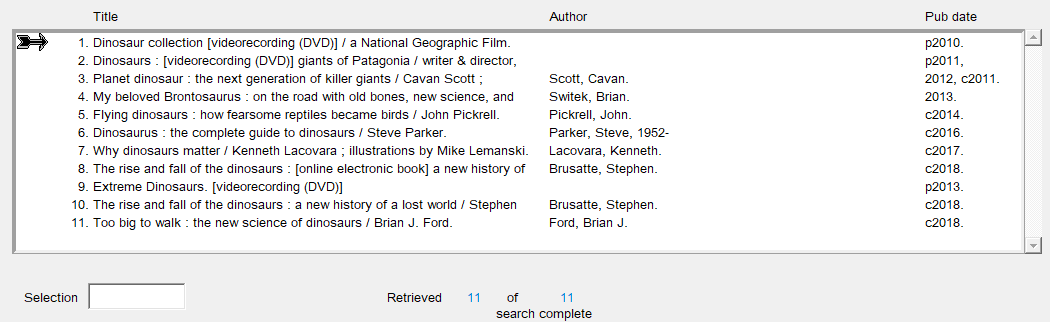
There are several fields that you can choose to limit the search results. In this example Publication Date has been chosen, with a value greater than or equal to (‘since’) 2010. This limits the results to just 11 items: