
Inter-Library Loans
**DONE**This section explains how to check materials in and out for inter-library loan (ILL), so that Horizon can track where they are.
This chapter does not explain how to use the ILL email system, how to use the Canada Post Shipping Tool or how to file any ILL paperwork. If you need guidance with any of thosethose, please contact your division office.
Within Our Provincial System
ILL requests are sent and received using the ILL email system, which works independently from Horizon. So you need to let Horizon know what’s happening by always:
-
-
- checking out items:
- before mailing them to other libraries
- before loaning them to borrowers
- checking out items:
-
and
-
-
- checking in items:
- when returned from borrowers
- when returned from other libraries
- checking in items:
-
Loaning an Item to Another Library
 Video Guide: Checking Out an Item to Another Library
If another library requests an item then you need to check it out to them before mailing it:
|
|
|
 |
|
|
|
|
|
Why? Because the blocks on the library’s account are not the concern or fault of the borrower who is requesting the item!
|
|
|
|
The item is now ready to be mailed. |


Don’t stamp a due date on the item, the borrowing library will do that when they check the item out to their borrower.
|
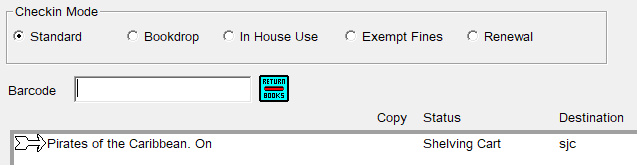
At the end of the loan, when the item is returned to you in the mail, check it in: |
 |
[HSmall]If a Library Requests an Item and it’s Already Checked Out[/HSmall]Out
Place a request on the item for the other library:
-
-
- go to the checkout window
- enter the three letter code for the requesting library
- if the blocks window appears click on CKO, then Override
- [F2] search for the item
- place the request (see Requests and Holds for more details)
-
At checkin, Horizon will tell you when it’s the requesting library’s turn to borrow the item:

Loan out the item to the other library as described in the section above.
Borrowing an Item from Another Library
Video Guide: Receiving an Item from Another Library
If you have requested an item from another library then when you receive it don’t check it in!
Why? Because Horizon is literal. When you check in an item Horizon will tell you to send it back to its home on the shelves, wherever that may be, or if there’s a pending request then it will tell you to place the item on hold.
So only check in an item on ILL when the borrower returns it. Right now simply place the item on the holds shelf, attach a Hold Slip and let the borrower know that the item has arrived.
If you forget and accidentally check in an item before the borrower has used it, just ignore the pop-up ‘place in transit’ message, and continue to hold it for the borrower.
When the borrower comes in to collect the item, check it out to them:

If the borrower wants to renew the item, renew it just like any other item.
When the borrower returns the item, check it in:

…and Horizon will tell you to send it home. The item is now ready to be mailed.
Outside Our Provincial System
We can loan items to libraries outside of our provincial system and also borrow items from them. We need to record those loans in Horizon.
Loaning an Item to an Out-of-Province (OOP) Library
Libraries outside our provincial system are treated as if they are library borrowers.
If an OOP library wants to borrow an item from our system then they will contact the provincial reference library. If the item is held at your location then the provincial reference library will contact you by email.
You will need to check out the item to the requesting library. [F4] borrower search for the library by name.
Mail the item to the address in the library’s borrower record, which should also be listed in the shipping tool.
When the item is returned check it in.
Borrowing an Item from an Out-of-Province Library
Borrowers sometimes ask for items that we don’t have in our provincial system but might be available in other provinces or systems. Forward the requests to your division office who will let you know if a copy can be found.
Generally books are only loaned when they have been published for 2 or more years.
The item won't be in Horizon yet, so when the item arrives let the borrower know.
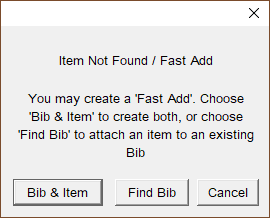
When the borrower comes in to check out the item, 'Fast Add' it to the system:
|
 |
|
|
|
|
|
|
|
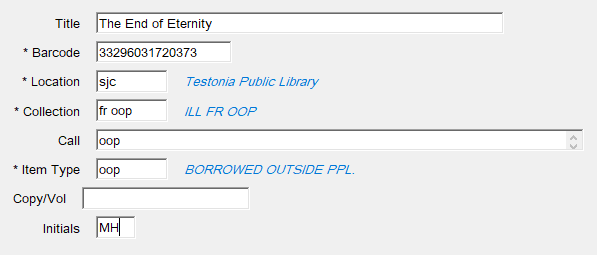
The item will now be checked out to your borrower.
Please note:
If there is no due date label on the item do not attach one. Place a slip of paper inside the book and attach using a plastic paperclip.
Items borrowed from out-of-province cannot be renewed using Horizon. To request an extension you will need to contact the lending library using the contact information in the ILL paperwork.
When the borrower returns the item check it in. Horizon will tell you that the record will be deleted:
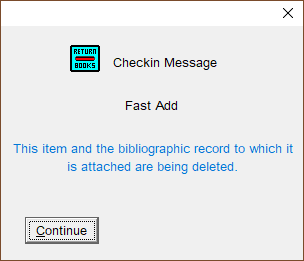
Click on Continue.
The item can now be mailed back to the loaning library.
Inter-Library Loans Not Picked Up
If the borrower does not pick up the item in the allotted time then you will need to return it.
Holds for ILL items aren’t recorded in Horizon, so Horizon can’t tell you when they’ve expired. You will need to check your holds shelf daily for expired ILL holds. Generally we hold an ILL for a week before returning it.
When a hold has expired:
-
-
- check in the item
- search for the borrower
- add a block to their account:
- select from top menu Blocks > Add Note
- select ill – Interlibrary Loan Not Picked Up
- in the comment field include the title and return date:
-
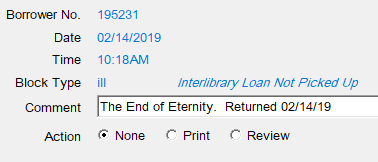
The note will let the borrower and other staff know what’s happened with the item.