
Requests and Holds
This section explains how to place a request on an item for a borrower and how to handle a request when checking in an item.
 Printable Quick Guide: Requests and Holds
Introduction
If a borrower wants an item that is currently checked out then you can place a request using Horizon. If many borrowers want the same item then Horizon will keep track of who's turn is next. When the current borrower returns the item, check it in, and Horizon will tell you who to hold it for next, or where to send it:

There is no fee for placing a request. You can place a request on a borrower’s behalf, or the borrower can place a request online themselves.
Horizon is helpful and flexible when handling requests and holds. For example, it will warn you if you try to check out an item that is being held for another borrower, and will let you renew or cancel their request as appropriate.
At most sites requests can only be placed for items in your own library. Requests for items available at other libraries must be made through the Inter-Library Loan (ILL) system.
Metro area libraries (St John’s, Mount Pearl, Torbay and CBS) can place requests on each other’s items, and so can Labrador City and Wabush.
Placing a Request
From the Checkout Window
The best way to place a request for a borrower is to begin at the checkout window.
Why? Because you will be able to immediately verify if the borrower has any currently blocks that might stop them from placing requests or checking out items.
To place a request:
|

 |
|
|
|
|
|
|
|
 |

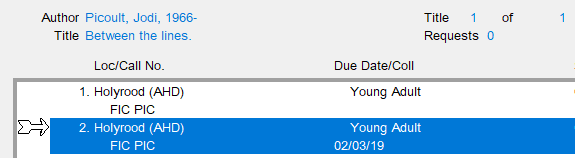

The comments box in the request window is generally not used but can be useful if, for example, the borrower has an alternative temporary contact number.
If you notice that the borrower’s contact details are not correct then go into their record and update them.
From the Search Window
This way is quicker if the borrower has no blocks on their account.
|
To place a request:
|
 |
Placing a Copy-Specific Request
If a borrower is looking for a particular edition of an item and there are multiple copies in the bibliographic record then you will need to place a copy-specific request:

This is useful if the borrower only wants the large print copy of an item, or the latest edition.
Why can't this request be placed?
Sometimes a request cannot be placed because the borrower is blocked from borrowing, or already has a maximum of 50 current requests. In such situations Horizon will provide a clear explanation.
But sometimes when you try to place a request for a borrower this cryptic pop-up message appears:
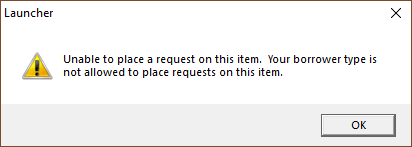
This is Horizon’s way of telling you that the borrower belongs to a library other than your own.
Requests can only be placed for items at the borrower’s home library.
If your library is the borrower's home library then go into their record and update it. Make sure that the Location field is updated to your library’s code. The request can now be placed.
Placing a request for another library
If another library in our system makes an inter-library loan request for an item that is currently in use then you can place a request for that library. Horizon will remind you about the request when the item is checked in.
To open the borrower record for another library:
-
-
- go to the checkout window
- type its 3-letter code directly into the barcode field
- click on OK or press [Enter]
-

Note that all requests made by local borrowers will be honoured before a request made by another library, even if the other library’s request was submitted first.
If an out-of-province library requests an item currently in use then place a request on the item using your own library’s account and place a comment to let staff know:

Checking in an Item with a Request
If an item has been requested then Horizon will let you know when you check it in. A message will appear, telling you which borrower the item is being placed on hold for, how they will be told and when the hold will expire.
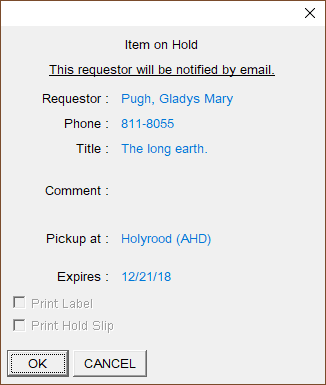

Always complete a Hold Slip for the item before closing the message.
Our system is not set up to print a Hold Slip so you will need to complete one by hand and attach it to the item before placing it on the holds shelf. When the hold slip has been completed, click on OK to dismiss the message.
The borrower needs to be told about the hold. The method of contact is based on the borrower’s registration information. See the section Editing a Borrower Record for more information about how to change that.
Notification by Email
Horizon will automatically email the borrower about the hold when circulation notices are next run. See the section Reports for more information about running notices.
Notification by Phone
If the borrower is to be notified by phone then you will need to call them.
Notification by Mail
If the borrower is to be contacted by mail then Horizon will generate a notification letter when circulation notices are next run.
Transit Request
Horizon will tell you which library to send the item to. Follow your library’s local procedure for fulfilling transit requests and also see the section Inter-Library Loans for more information.
Cancelling a Hold
Sometimes a borrower no longer needs an item that is being held for them. The quickest and simplest way to cancel a hold is to check in the item. This message will appear:

Click on Yes to cancel the hold.
Another message will appear claiming that the borrower will be notified when notices are sent. However Horizon does not generate a notice. Instead Horizon places a ‘Hold Cancelled’ block on the borrower’s account, which will display when their card is next scanned.
Expired Holds
By default items are held for 7 days, after which they should be checked in again. If another borrower has a request then Horizon will tell you to hold it for them.
You can view the list of expired holds by going into Circulation Reports and selecting from top menu Request > Expired/Canceled. See the section Reports for more details.
Viewing a Borrower’s Holds
Search for the borrower or scan their card. If any items are being held for them then the blocks window will appear:

Viewing a Borrower’s Requests
- [F4] search for the borrower or scan their card
- select from top menu Borrower > Requests
The Borrower Request List window will appear:
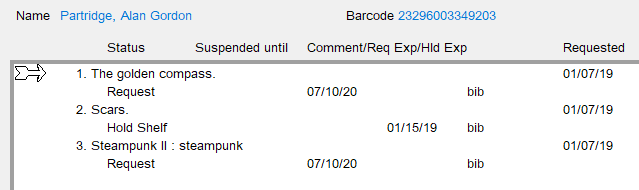
The window shows all of the borrower’s active requests and all items being held for them.
Editing a Request or Hold
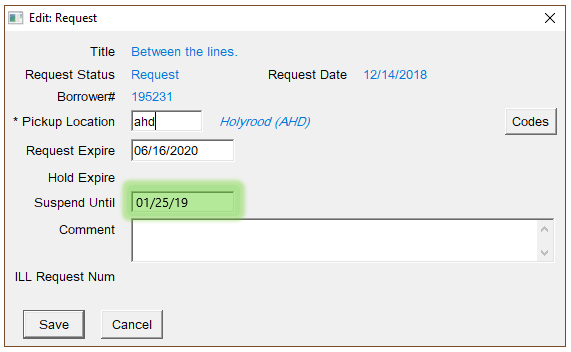
A request or hold can be edited by selecting the item in the Borrower Request List window and then clicking on Edit. Multiple items can be selected. A request can also be deleted by clicking on Delete.
For example, suppose that a borrower is going on vacation. They want to stay in the request queue but don’t need the item until after they return. You can suspend the request until their return date. If the item becomes available in the meantime then other borrowers’ requests will be fulfilled.
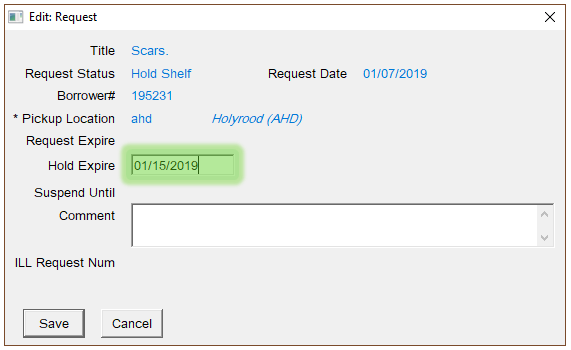
When an item is already being held, the request cannot be suspended, however the Hold Expire date can be changed:
Viewing the Request List for a Title
The Request List for a title shows all requests on that title across the province, in the order in which they were placed:

Although the whole provincial queue can be seen, Horizon is currently set up so that only local items will be used to fulfill local requests. Requests for local items to be sent to other locations are handled by the separate Inter-Library Loan system.
Exception reminder: Metro area libraries - St John’s, Mount Pearl, Torbay and CBS - can place requests on each other’s items, and so can Labrador City and Wabush.
There are several ways that you can view a title’s Request List:
From Checkout
-
-
- [F4] search for the borrower or scan their card
- select from top menu Borrower > Requests
- select the title from the list of requests
- click on Item Queue
-
From Checkin
-
-
- checkin the item
- select from top menu Item > Requests
-
From Item Search
-
-
- [F2] search for the title and select it:
- select from top menu Request > View Title Request List
-
Reordering the Request Queue
Viewing the Request List allows you to judge the demand for an item. From here you can also reorder the request queue. To do so:
-
-
- highlight the borrower whose position you wish to change
- click on Reorder Queue and enter a new position number:
-

Please use extreme caution. Many borrowers track their requests and could be upset if they are moved down in the queue.
Checking out an Item on Hold for Another Borrower
We shouldn't check out an item that's being held for another borrower, but sometimes a borrower might ask a family member or friend to collect an item for them.
If an item is on hold for one borrower and you try to check it out to another borrower then Horizon will warn you about the current hold before asking you if you want to go ahead with the checkout:

Click on Yes.
Another window will ask if you want to renew the borrower’s request:

If the item is being picked up on behalf of the borrower then click on No.
Checking out an Item Requested by Another Borrower
Sometimes a borrower brings an item to the checkout that's been requested by another borrower but hasn’t yet been placed on the hold's shelf. Horizon will warn you that the other borrower has requested the item:

You should go ahead with the checkout by clicking on Yes.
This doesn't happen often and is not a problem. The request for the other borrower will be activated when the item is returned and checked in.